

ASP.NET 添加图片文本专业指南
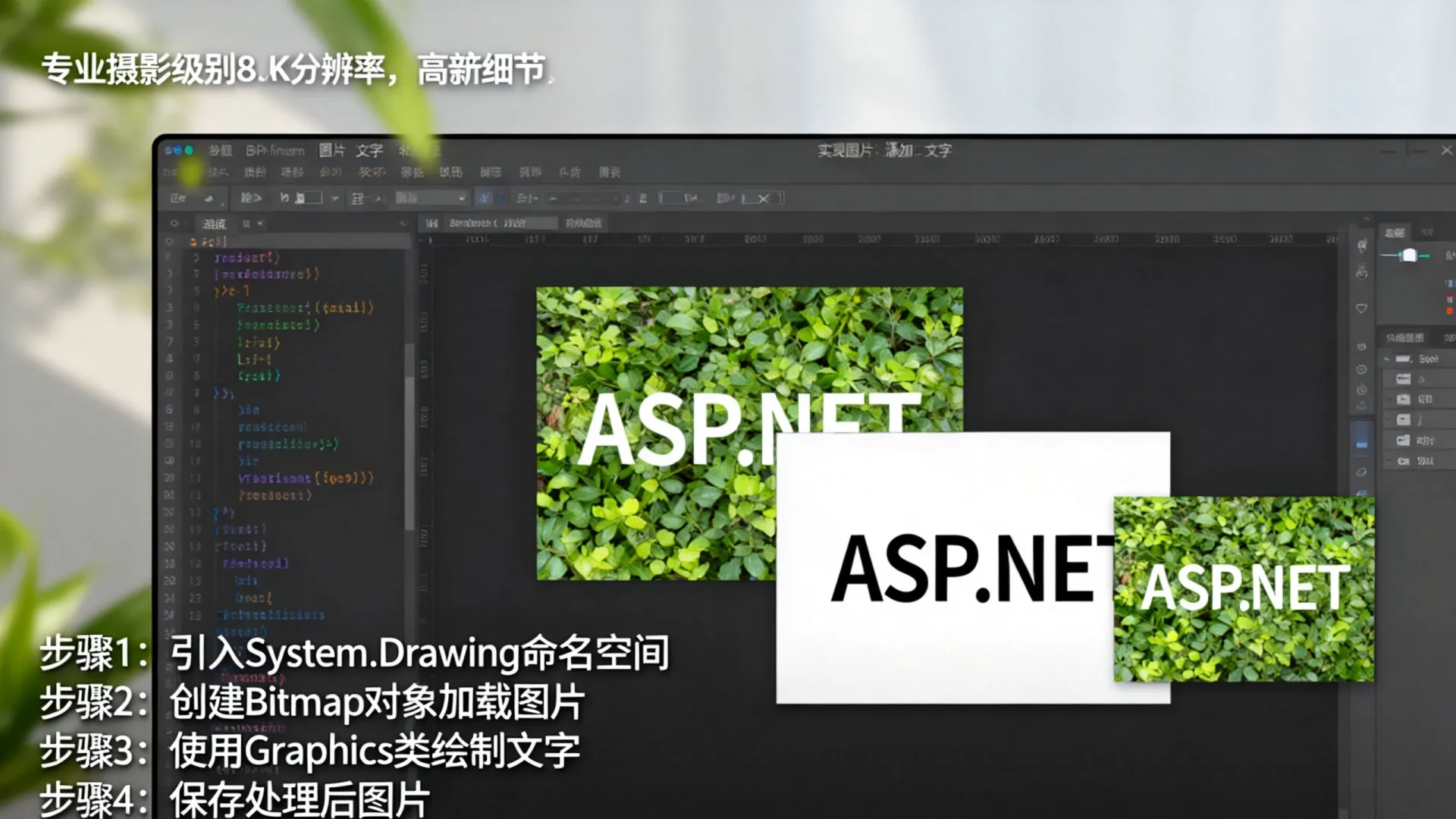
在ASP.NET中为图片添加文本是一项常见且实用的功能,常用于生成水印、动态标注图片信息或创建个性化图像内容,核心实现通常涉及接收图片文件、利用图形处理库叠加文本、保存或输出处理后的图片,以下详细讲解几种专业可靠的实现方案。
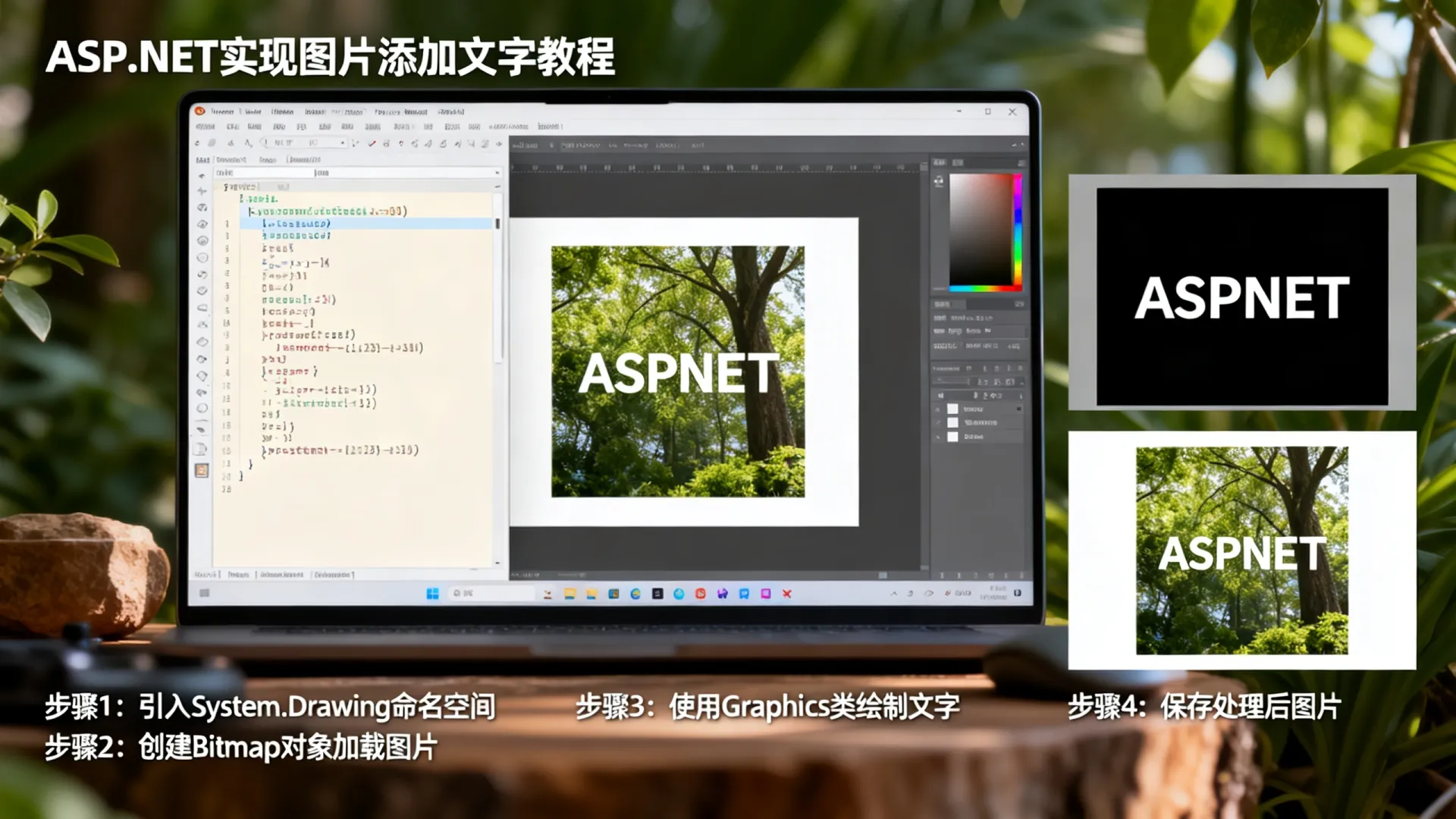
基础实现:HttpPostedFileBase + System.Drawing (适用于传统 Web Forms / MVC)
此方案适用于.NET Framework环境,利用内置的System.Drawing命名空间。
// 控制器方法 (MVC 示例)
[HttpPost]
public ActionResult AddTextToImage(HttpPostedFileBase imageFile, string text)
{
    if (imageFile != null && imageFile.ContentLength > 0)
    {
        // 1. 安全验证:检查文件类型
        if (!IsImageFile(imageFile)) return View("Error");
        // 2. 从上传流创建Bitmap
        using (var originalImage = new Bitmap(imageFile.InputStream))
        {
            // 3. 创建可编辑的Graphics对象
            using (var graphics = Graphics.FromImage(originalImage))
            {
                // 4. 配置文本样式(字体、颜色、位置)
                var font = new Font("Arial", 20, FontStyle.Bold);
                var brush = new SolidBrush(Color.FromArgb(128, 255, 0, 0)); // 半透明红色
                var point = new PointF(10, 10);
                // 5. 绘制文本到图片
                graphics.DrawString(text, font, brush, point);
                // 6. 保存处理后的图片
                var outputPath = Server.MapPath("~/ProcessedImages/output.jpg");
                originalImage.Save(outputPath, ImageFormat.Jpeg);
            }
        }
        return View("Success");
    }
    return View("Index");
}
// 辅助方法:验证图片类型
private bool IsImageFile(HttpPostedFileBase file)
{
    var allowedTypes = new[] { "image/jpeg", "image/png", "image/gif" };
    return allowedTypes.Contains(file.ContentType);
}
关键点说明:
- 安全验证:必须严格验证上传文件类型(ContentType/MIME Type)和扩展名,防止恶意文件上传。
- 资源释放:
Bitmap和Graphics对象必须包裹在using语句中确保及时释放非托管资源。 - 透明度控制:使用
Color.FromArgb(alpha, red, green, blue)控制文本透明度(alpha值:0完全透明,255不透明)。
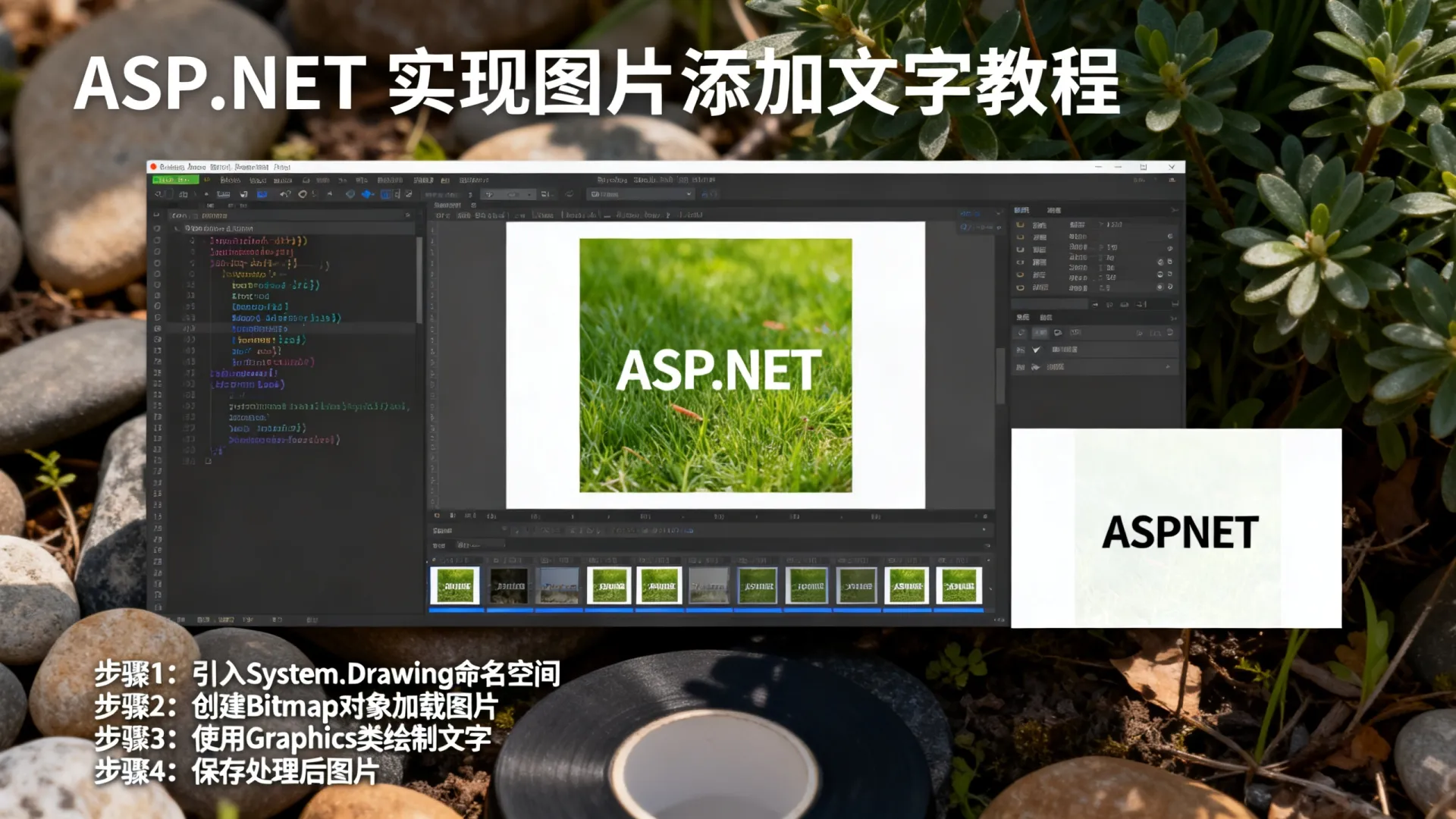
高性能方案:ImageSharp (推荐用于 ASP.NET Core)
SixLabors.ImageSharp是开源、跨平台且高性能的现代图像处理库,完美替代System.Drawing。
// ASP.NET Core 控制器方法
[HttpPost]
public async Task<IActionResult> AddTextWithImageSharp(IFormFile imageFile, string watermarkText)
{
    if (imageFile?.Length > 0)
    {
        // 1. 安全验证
        if (!IsImageFile(imageFile)) return BadRequest("Invalid file type");
        // 2. 创建输出目录
        var outputPath = Path.Combine(_env.WebRootPath, "watermarked", imageFile.FileName);
        // 3. 使用ImageSharp处理
        using (var image = await Image.LoadAsync(imageFile.OpenReadStream()))
        {
            // 4. 设置文本选项
            var textOptions = new TextOptions(new Font(SystemFonts.Find("Arial"), 30))
            {
                Origin = new PointF(50, 50), // 位置
                HorizontalAlignment = HorizontalAlignment.Left,
                VerticalAlignment = VerticalAlignment.Top,
                TextColor = Color.FromRgba(255, 0, 0, 0.5f) // 半透明红色
            };
            // 5. 应用抗锯齿渲染
            image.Mutate(ctx => ctx.DrawText(textOptions, watermarkText, Brushes.Solid(Color.Red)));
            // 6. 异步保存处理结果
            await image.SaveAsync(outputPath);
        }
        return PhysicalFile(outputPath, "image/jpeg");
    }
    return View();
}
优势分析:
- 跨平台支持:完美兼容Windows/Linux/macOS部署环境。
- 性能优化:底层使用SIMD指令加速处理,适合高并发场景。
- 现代API设计:流畅接口(Fluent API)使代码更易读和维护。
- 无GDI+依赖:避免传统
System.Drawing在Linux下的兼容性问题。
高级应用场景与专业建议
动态水印定位
- 角落定位:根据图片尺寸计算位置(如
new PointF(image.Width - textSize.Width - 10, 10)) - 居中水印:使用
graphics.MeasureString或ImageSharp的TextMeasurer测量文本尺寸后计算居中坐标。 - 平铺水印:通过循环在图片上重复绘制文本。
字体与样式优化
- 嵌入字体:确保服务器存在所需字体文件(如将字体文件放入项目资源)。
- 抗锯齿处理:
- ImageSharp:默认启用高质量抗锯齿。
- System.Drawing:设置
graphics.TextRenderingHint = TextRenderingHint.AntiAliasGridFit。
- 阴影/描边效果:在ImageSharp中可通过多次绘制文本(偏移位置+不同颜色)模拟。
安全与性能最佳实践
- 文件上传限制:
- 在Web.config或Startup中配置
maxAllowedContentLength和maxRequestBodySize。 - 使用
IIS时需单独设置<requestLimits maxAllowedContentLength="..." />。
- 在Web.config或Startup中配置
- 内存与资源管理:
- 大型图片处理采用分块处理或调整处理分辨率。
- 使用
ArrayPool<byte>或MemoryStream池化减少内存分配。
- 异步处理:对于耗时操作(如超大图片或复杂效果),使用后台任务(如
IHostedService或BackgroundService)避免阻塞请求线程。
替代方案评估
- 云服务API(如Azure Cognitive Services、AWS Rekognition):适合需要OCR、复杂图像分析的场景,但需考虑网络延迟和成本。
- JavaScript前端处理(如Canvas):减轻服务器负载,适合用户浏览器内实时预览,但最终保存仍需提交服务器或使用浏览器API。
企业级解决方案架构
对于高流量网站,推荐采用以下架构:
用户请求 -> [负载均衡器]
          -> [Web服务器集群] (处理上传/下载,轻量操作)
          -> [消息队列 (RabbitMQ/Azure Queue)]
          -> [专用图像处理Worker] (使用ImageSharp处理)
          -> [云存储 (Azure Blob / AWS S3)] (保存结果)
-> [CDN] (加速图片分发)优势:解耦Web服务器与CPU密集型任务,水平扩展Worker节点,利用云存储和CDN优化访问速度与成本。
您在实际项目中如何实现图片文本添加?是否遇到过性能瓶颈或跨平台兼容性问题?欢迎分享您的应用场景和挑战! 对于需要处理海量图片的企业,建议优先评估ImageSharp+消息队列方案,您认为哪种优化策略对您的项目最具价值?
首发原创文章,作者:王坚,如若转载,请注明出处:https://idctop.com/article/20925.html