


iOS开发UI教程
iOS应用的用户界面是用户体验的核心,本文将系统介绍iOS UI开发的两种主流技术:UIKit和SwiftUI,提供可直接运行的代码示例和最佳实践。
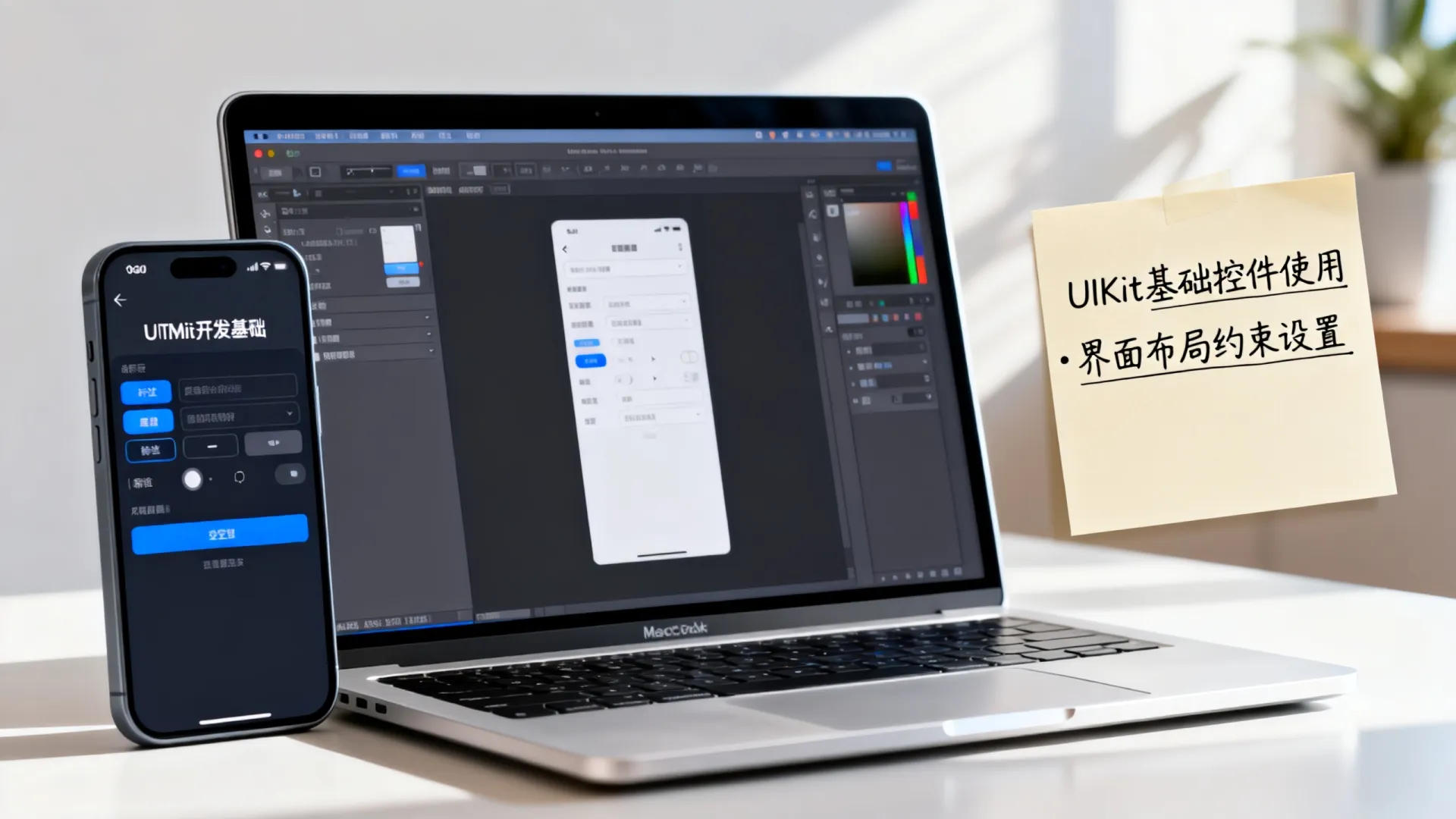
UIKit:经典界面开发框架
Auto Layout 自动布局实战
// 使用代码创建约束
let redView = UIView()
redView.backgroundColor = .red
view.addSubview(redView)
// 禁用自动转换约束
redView.translatesAutoresizingMaskIntoConstraints = false
// 设置约束
NSLayoutConstraint.activate([
    redView.centerXAnchor.constraint(equalTo: view.centerXAnchor),
    redView.centerYAnchor.constraint(equalTo: view.centerYAnchor),
    redView.widthAnchor.constraint(equalToConstant: 200),
    redView.heightAnchor.constraint(equalTo: redView.widthAnchor, multiplier: 0.5)
])
关键点:
- 使用
translatesAutoresizingMaskIntoConstraints = false关闭自动转换 - 锚点系统(Anchor)实现精准定位
- 多约束用
NSLayoutConstraint.activate批量激活
UITableView 高效列表开发
class CustomCell: UITableViewCell {
    static let identifier = "CustomCell"
    override init(style: UITableViewCell.CellStyle, reuseIdentifier: String?) {
        super.init(style: .subtitle, reuseIdentifier: reuseIdentifier)
        accessoryType = .disclosureIndicator
    }
    required init?(coder: NSCoder) {
        fatalError("init(coder:) has not been implemented")
    }
}
// 数据源方法实现
func tableView(_ tableView: UITableView, cellForRowAt indexPath: IndexPath) -> UITableViewCell {
    let cell = tableView.dequeueReusableCell(withIdentifier: CustomCell.identifier, for: indexPath)
    cell.textLabel?.text = dataArray[indexPath.row].title
    cell.detailTextLabel?.text = dataArray[indexPath.row].subtitle
    return cell
}
SwiftUI:声明式界面新范式
基础组件与布局
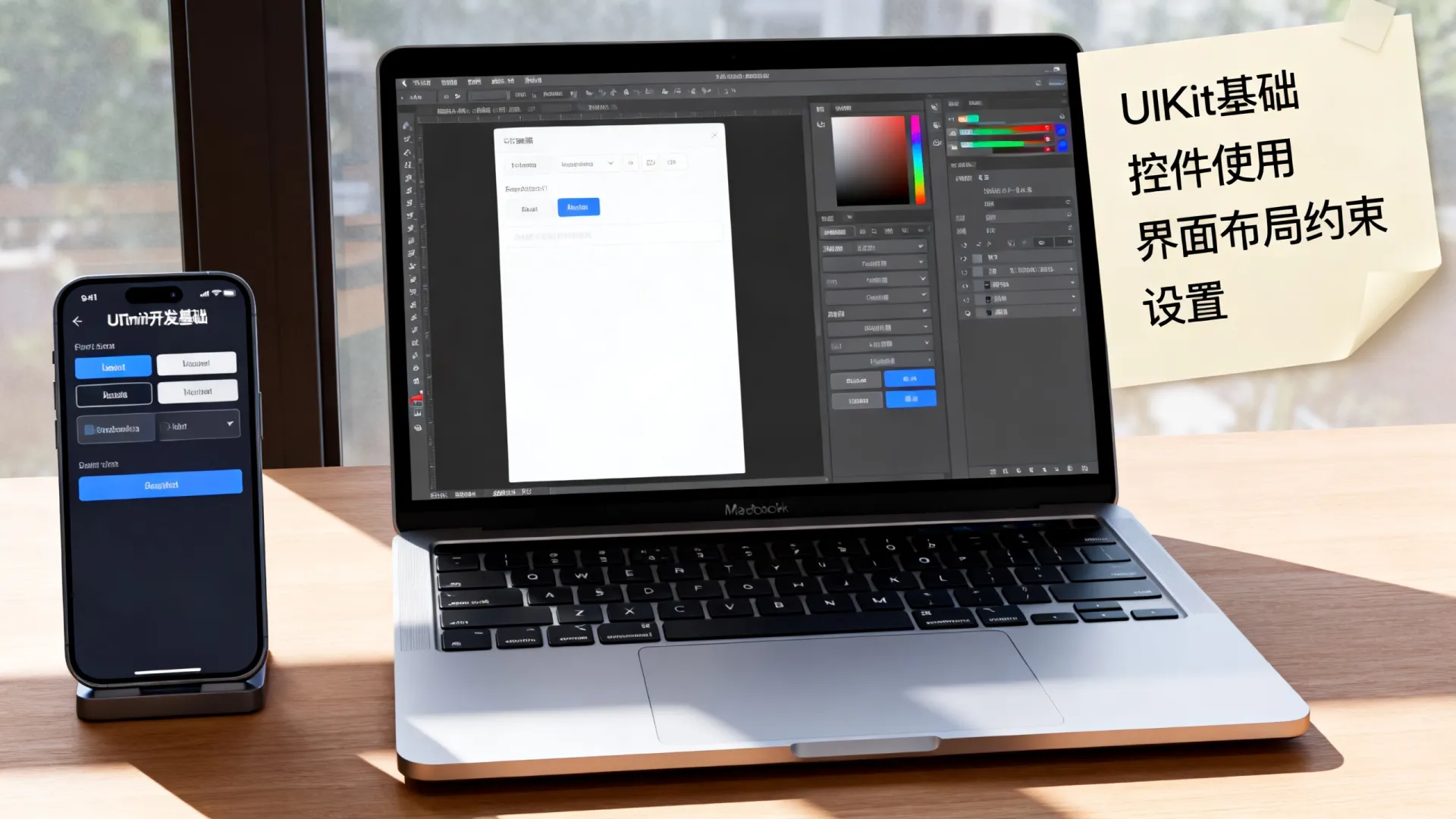
struct ContentView: View {
    var body: some View {
        VStack(spacing: 20) {
            Text("欢迎使用SwiftUI")
                .font(.largeTitle)
                .foregroundColor(.blue)
            Image(systemName: "swift")
                .resizable()
                .frame(width: 100, height: 100)
                .foregroundColor(.orange)
            Button(action: {
                print("按钮被点击")
            }) {
                Text("点击操作")
                    .padding()
                    .background(Color.green)
                    .foregroundColor(.white)
                    .cornerRadius(10)
            }
        }
        .padding()
    }
}
状态管理与数据绑定
struct CounterView: View {
    @State private var count: Int = 0
    var body: some View {
        HStack {
            Button("-") { count -= 1 }
                .padding()
                .background(Color.red)
                .foregroundColor(.white)
            Text("(count)")
                .font(.title)
                .padding()
            Button("+") { count += 1 }
                .padding()
                .background(Color.green)
                .foregroundColor(.white)
        }
        .cornerRadius(8)
    }
}
列表与导航
struct Item: Identifiable {
    let id = UUID()
    var name: String
}
struct ListView: View {
    @State private var items = [
        Item(name: "苹果"),
        Item(name: "香蕉"),
        Item(name: "橙子")
    ]
    var body: some View {
        NavigationView {
            List {
                ForEach(items) { item in
                    NavigationLink(destination: DetailView(item: item)) {
                        Text(item.name)
                    }
                }
                .onDelete(perform: deleteItems)
            }
            .navigationTitle("水果列表")
            .toolbar {
                EditButton()
            }
        }
    }
    private func deleteItems(at offsets: IndexSet) {
        items.remove(atOffsets: offsets)
    }
}
专业建议与避坑指南
- 自适应布局策略
- 使用
GeometryReader响应屏幕尺寸变化 - 为iPad和Mac创建多列布局
- 利用
@Environment(.horizontalSizeClass)判断设备横竖屏
- 性能优化要点
- 对复杂视图使用
LazyVStack/LazyHStack - 避免在视图body内执行繁重操作
- 使用
drawingGroup()提升复杂图形性能
- 暗黑模式适配技巧
// 颜色适配
.foregroundColor(Color("AdaptiveColor"))
// 资源文件中定义:
// AdaptiveColor: Light #333333, Dark #FFFFFF
4. 动画实现进阶
```swift
withAnimation(.spring(response: 0.5, dampingFraction: 0.6)) {
    showDetail.toggle()
}
技术选型建议
| 特性 | UIKit | SwiftUI |
|---|---|---|
| 支持版本 | iOS 2.0+ | iOS 13.0+ |
| 编程范式 | 命令式 | 声明式 |
| 实时预览 | 需第三方工具 | 原生支持 |
| 学习曲线 | 较陡峭 | 相对平缓 |
| 适合场景 | 维护老项目 | 新项目开发 |
架构决策关键:考虑团队熟练度、目标用户系统版本、项目复杂度,大型项目推荐混合使用,用SwiftUI逐步重构UIKit模块。
互动讨论:你在开发中最常遇到的UI难题是什么?是复杂的动画实现、多设备适配还是性能优化问题?欢迎在评论区分享具体场景,我将抽取典型问题深度解析!
首发原创文章,作者:王坚,如若转载,请注明出处:https://idctop.com/article/25869.html













评论列表(3条)
读了这篇文章,我深有感触。作者对使用的理解非常深刻,论述也很有逻辑性。内容既有理论深度,又有实践指导意义,
@cute234lover:这篇文章写得非常好,内容丰富,观点清晰,让我受益匪浅。特别是关于使用的部分,分析得很到位,
@cute234lover:读了这篇文章,我深有感触。作者对使用的理解非常深刻,论述也很有逻辑性。内容既有理论深度,又有实践指导意义,