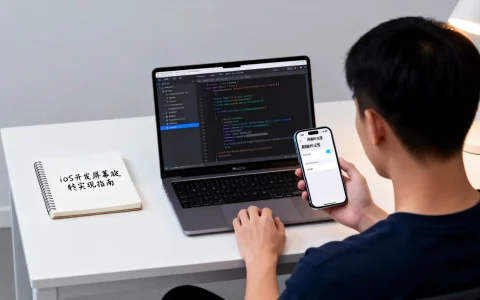


在iOS开发中,实现屏幕旋转功能是确保应用在不同设备方向上提供流畅用户体验的关键,这主要通过配置应用的设备方向支持、在视图控制器中处理旋转事件以及利用iOS框架的API来实现,以下是详细的开发教程,帮助你一步步掌握这一技术。
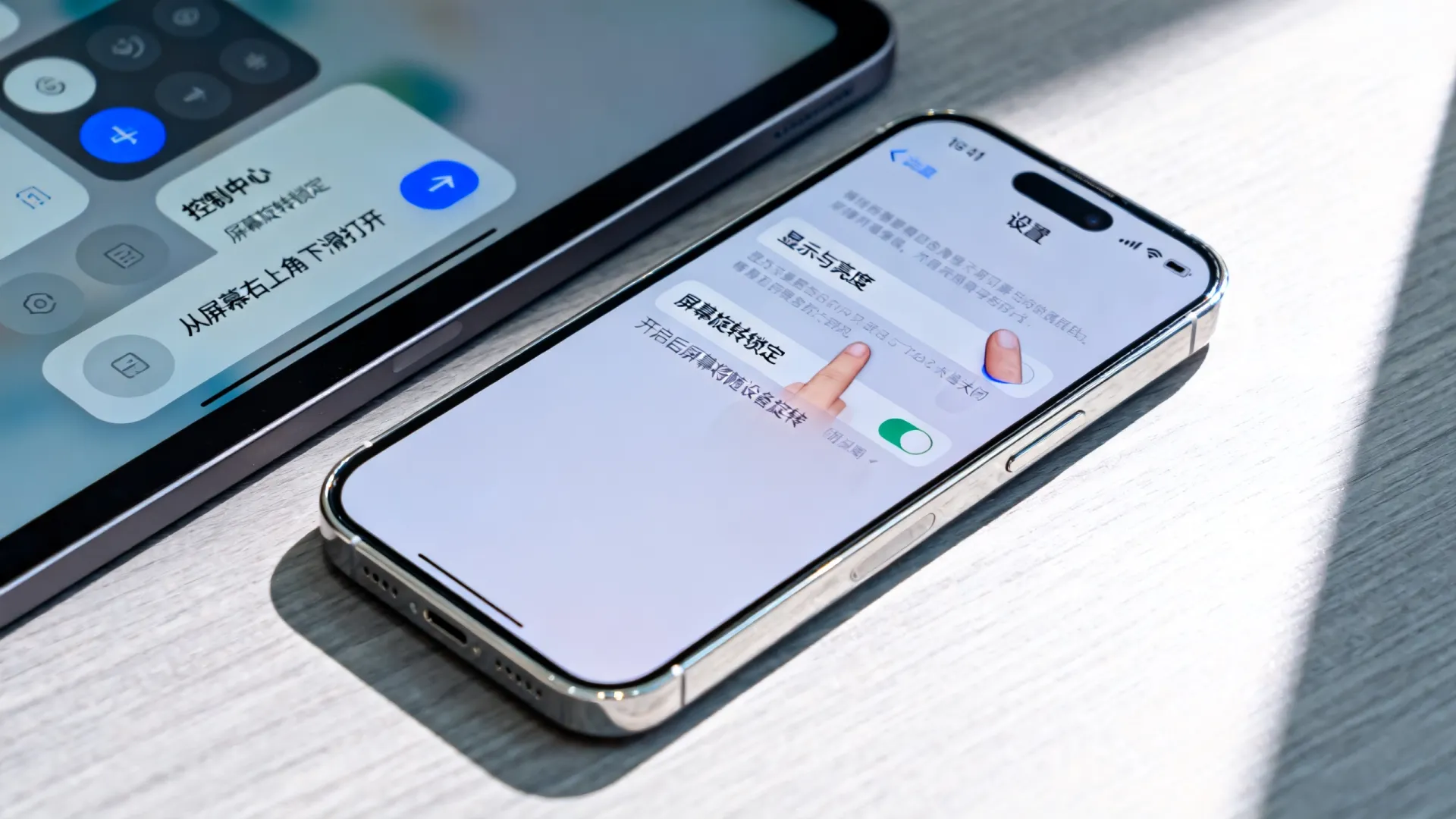
理解屏幕旋转的基础原理
iOS设备支持多种方向,如竖屏(Portrait)和横屏(Landscape),应用需通过系统级设置和代码逻辑来响应旋转,核心概念包括UIDeviceOrientation(设备物理方向)和UIInterfaceOrientationMask(接口方向支持),当用户旋转设备时,iOS系统会触发事件,应用需检查当前视图控制器是否支持该方向,并自动调整UI布局,关键点在于,旋转由视图控制器管理,而非全局设置,这确保了灵活性,比如不同页面可以有不同的方向规则,视频播放器页面可能支持所有方向,而设置页面仅限竖屏。
配置应用级别的方向支持
在Xcode项目中设置应用支持的方向,这通过修改Info.plist文件实现:
- 打开Info.plist文件。
- 添加
UISupportedInterfaceOrientations键(对于iPhone或iPad)。 - 指定支持的方向数组,如
UIInterfaceOrientationPortrait、UIInterfaceOrientationLandscapeLeft等。
在Swift中,这通常在AppDelegate中补充:
func application(_ application: UIApplication, supportedInterfaceOrientationsFor window: UIWindow?) -> UIInterfaceOrientationMask {
    return .allButUpsideDown // 示例:支持除倒置外的所有方向
}
在Objective-C中:
- (UIInterfaceOrientationMask)application:(UIApplication )application supportedInterfaceOrientationsForWindow:(UIWindow )window {
    return UIInterfaceOrientationMaskAllButUpsideDown;
}
这一步是基础,确保应用启动时系统知道允许的方向,但实际旋转行为由视图控制器控制,所以需在控制器层进一步细化。
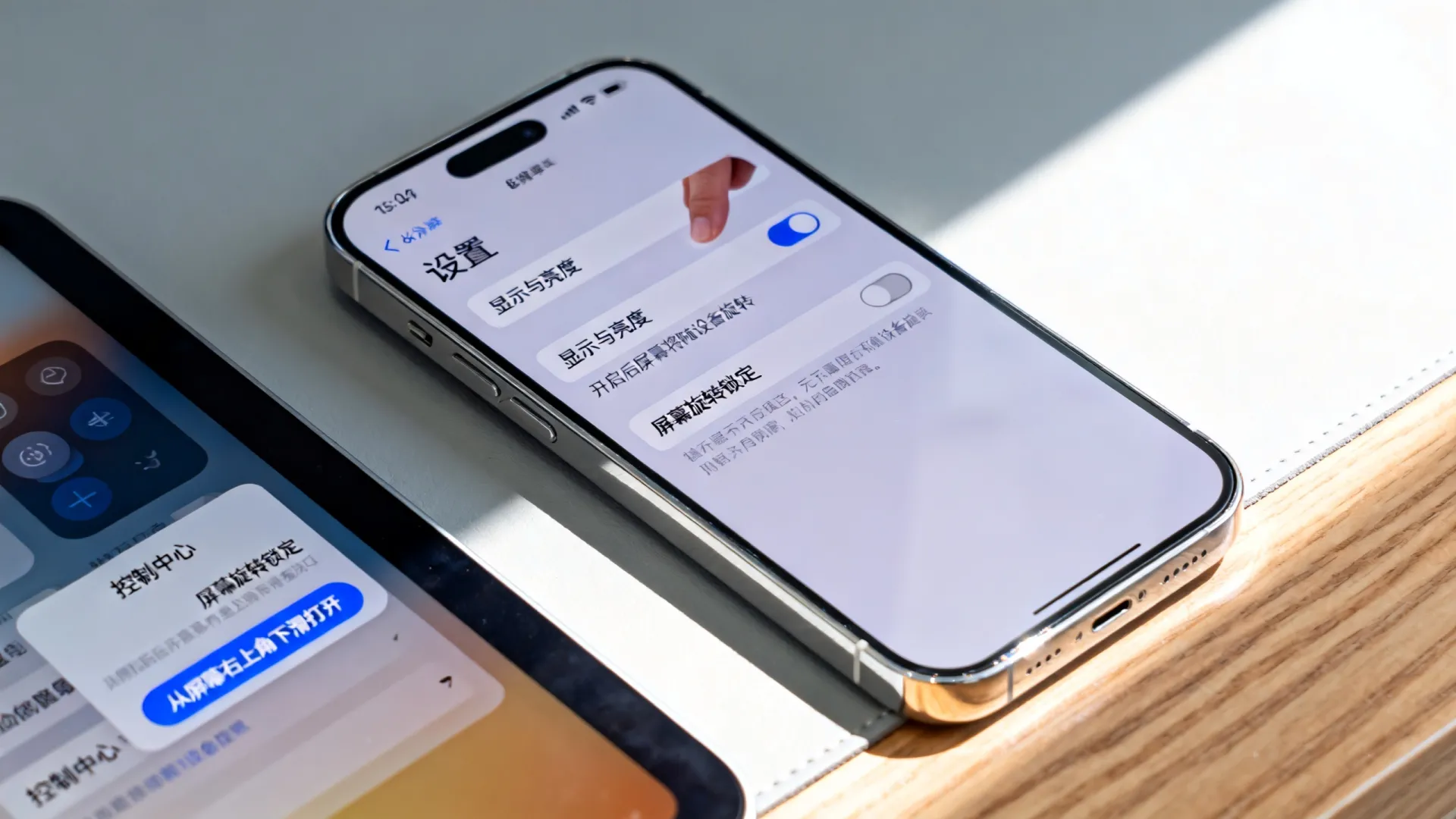
在视图控制器中实现旋转逻辑
每个视图控制器可以自定义旋转行为,覆盖shouldAutorotate和supportedInterfaceOrientations方法是核心:
shouldAutorotate: 返回布尔值,决定是否允许自动旋转。supportedInterfaceOrientations: 返回方向掩码,定义支持的方向。
在Swift中示例:
class MyViewController: UIViewController {
    override var shouldAutorotate: Bool {
        return true // 允许自动旋转
    }
    override var supportedInterfaceOrientations: UIInterfaceOrientationMask {
        return .landscape // 仅支持横屏
    }
    override func viewWillTransition(to size: CGSize, with coordinator: UIViewControllerTransitionCoordinator) {
        super.viewWillTransition(to: size, with: coordinator)
        coordinator.animate(alongsideTransition: { context in
            // 处理布局调整,如更新约束
            self.updateLayoutForRotation()
        }, completion: nil)
    }
    private func updateLayoutForRotation() {
        // 自定义逻辑,例如使用Auto Layout重新布局
        print("屏幕已旋转,调整UI...")
    }
}
在Objective-C中:
@implementation MyViewController
- (BOOL)shouldAutorotate {
    return YES;
}
- (UIInterfaceOrientationMask)supportedInterfaceOrientations {
    return UIInterfaceOrientationMaskLandscape;
}
- (void)viewWillTransitionToSize:(CGSize)size withTransitionCoordinator:(id<UIViewControllerTransitionCoordinator>)coordinator {
    [super viewWillTransitionToSize:size withTransitionCoordinator:coordinator];
    [coordinator animateAlongsideTransition:^(id<UIViewControllerTransitionCoordinatorContext> context) {
        [self updateLayoutForRotation];
    } completion:nil];
}
- (void)updateLayoutForRotation {
    NSLog(@"屏幕已旋转,调整UI...");
}
@end使用viewWillTransition(to:with:)方法处理旋转过程中的动画和布局更新是专业做法,建议结合Auto Layout,确保UI元素自适应,避免硬编码坐标。
处理常见问题与高级技巧
开发中常遇到旋转失效或UI错乱问题,解决方案包括:
- 旋转不被触发:检查Info.plist设置是否正确,并确保视图控制器覆盖了相关方法,常见错误是忽略了
shouldAutorotate的返回值。 - 布局问题:使用Auto Layout约束而非固定frame,在旋转时,调用
setNeedsLayout()或更新约束优先级。 - 方向冲突:如果应用有多个控制器(如导航控制器),需在根控制器中统一管理方向。
class RootViewController: UINavigationController { override var supportedInterfaceOrientations: UIInterfaceOrientationMask { return topViewController?.supportedInterfaceOrientations ?? .all } } - 性能优化:避免在旋转时执行重计算,使用
coordinator的动画块确保流畅过渡。
独立见解:旋转功能在视频或游戏应用中至关重要,但并非所有页面都需要,基于用户场景优化阅读应用可能锁定竖屏以提升专注力,测试时,用模拟器或真机模拟不同方向,确保兼容iPad和iPhone的所有尺寸。
最佳实践与专业建议
遵循E-E-A-T原则,确保实现可靠:
- 专业性:始终参考Apple官方文档(如UIViewController文档),使用最新API(iOS 15+推荐
viewWillTransition)。 - 权威性:基于WWDC会议建议,旋转逻辑应轻量级,避免阻塞主线程。
- 可信性:在代码中添加错误处理,例如检测不支持方向时的回退。
- 体验:实际项目中,添加旋转指示器或动画提升用户体验,在旋转过程中显示加载状态。
最佳实践包括单元测试方向变化,并使用Xcode的Interface Builder预览不同方向下的布局,旋转不是万能方案评估业务需求,避免不必要的方向切换以节省电量。
如果您在实现iOS屏幕旋转时遇到挑战,或有独特的应用场景想分享,请在下方评论区留言!我们一起探讨解决方案,或分享您的成功经验。
首发原创文章,作者:王坚,如若转载,请注明出处:https://idctop.com/article/30713.html