

在 Linux 系统中,“网页模拟”通常指的是在没有图形界面(Headless)或没有浏览器的情况下,通过命令行工具来模拟网页请求、渲染页面或测试 Web 功能。
以下是几种常见的 Linux 网页模拟方法,按使用场景分类:

模拟 HTTP 请求(最常用)
如果你只想模拟浏览器发送 GET/POST 请求,获取网页内容或测试 API,使用 curl 或 wget。
curl (推荐)
功能强大,支持各种 HTTP 方法、Header 设置、Cookie 等。
# 1. 简单的 GET 请求
curl https://www.example.com
# 2. 模拟浏览器 User-Agent (防止被反爬)
curl -A "Mozilla/5.0 (Windows NT 10.0; Win64; x64) AppleWebKit/537.36" https://www.example.com
# 3. POST 请求发送 JSON 数据
curl -X POST -H "Content-Type: application/json" -d '{"key":"value"}' https://www.example.com/api
# 4. 查看响应头信息
curl -I https://www.example.com
# 5. 保存响应内容到文件
curl -o page.html https://www.example.com
wget
适合下载文件或简单抓取页面。
# 递归下载整个网站(谨慎使用)
wget --recursive --no-clobber --page-requisites --html-extension --convert-links --restrict-file-names=windows --domains example.com https://www.example.com
# 简单抓取
wget https://www.example.com
无头浏览器模拟(完整渲染)
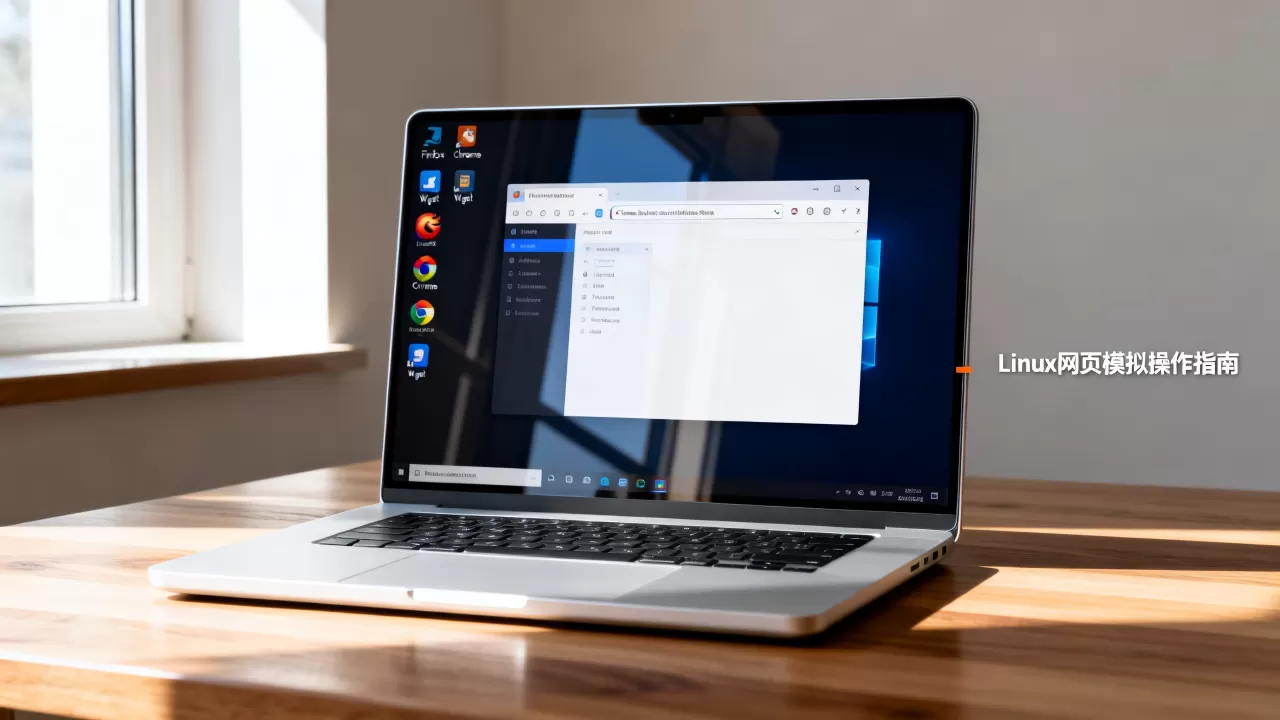
如果你需要模拟JavaScript 渲染、点击按钮、截图或自动化测试,需要使用“无头浏览器”(Headless Browser)。
Puppeteer (Node.js)
Google 官方维护,基于 Chromium,功能强大。
# 安装
npm install puppeteer
# 创建脚本 test.js
const puppeteer = require('puppeteer');
(async () => {
  const browser = await puppeteer.launch({ headless: true }); // headless: true 表示无图形界面
  const page = await browser.newPage();
  await page.goto('https://www.example.com');
  // 模拟点击
  await page.click('button.submit');
  // 截图
  await page.screenshot({ path: 'example.png' });
  // 获取页面标题
  const title = await page.title();
  console.log(title);
  await browser.close();
})();
# 运行
node test.js
Playwright (Microsoft)
支持 Chromium, Firefox, WebKit,跨浏览器测试首选。
# 安装
npm init playwright@latest
# 创建脚本 test.js
const { chromium } = require('playwright');
(async () => {
  const browser = await chromium.launch({ headless: true });
  const context = await browser.newContext();
  const page = await context.newPage();
  await page.goto('https://www.example.com');
  await page.screenshot({ path: 'example.png' });
  await browser.close();
})();
Selenium (Python/Java/等)
经典自动化测试工具,支持多种浏览器。
# Python 示例
from selenium import webdriver
from selenium.webdriver.chrome.options import Options
options = Options()
options.add_argument('--headless')  # 无头模式
options.add_argument('--no-sandbox') # Linux 服务器常见参数
driver = webdriver.Chrome(options=options)
driver.get('https://www.example.com')
print(driver.title)
driver.quit()
轻量级无头浏览器(适合嵌入式/低资源)
w3m 或 links2
纯文本浏览器,适合在终端中查看网页结构。
# 安装
sudo apt install w3m
# 使用
w3m https://www.example.com
lynx
另一个经典的文本浏览器。
sudo apt install lynx
lynx https://www.example.com
网络抓包与协议模拟(高级)
tcpdump / Wireshark
用于捕获和分析 HTTP/HTTPS 流量。
# 捕获 HTTP 请求
sudo tcpdump -i any port 80 -A
httpie
更友好的命令行 HTTP 客户端。
sudo apt install httpie
http GET https://www.example.com
选择建议
| 需求 | 推荐工具 |
|---|---|
| 简单获取网页内容/API 测试 | curl |
| 下载文件或递归抓取 | wget |
| 需要执行 JavaScript、截图、自动化操作 | Puppeteer / Playwright |
| 自动化测试、跨浏览器兼容 | Selenium / Playwright |
| 终端中查看网页文本 | w3m / lynx |
| 低资源服务器/嵌入式设备 | w3m / links2 |
常见问题提示
-
SSL 证书错误:在测试环境中,有时需要忽略证书验证:
curl -k https://self-signed.example.com
-
Linux 服务器无 GUI:所有提到的“无头浏览器”(Puppeteer/Playwright/Selenium)都支持
headless模式,无需安装桌面环境。 -
反爬虫机制:许多网站会检测
curl的 User-Agent,建议使用Puppeteer或设置真实的浏览器 User-Agent。 -
依赖问题:Puppeteer/Playwright 需要安装 Chromium 浏览器,在 Docker 或服务器上,可能需要手动安装:
# Ubuntu/Debian
sudo apt install chromium-browser
如果你有具体的使用场景(如“我想模拟登录”或“我想爬取动态页面”),可以提供更多细节,我可以给出更具体的代码示例。
首发原创文章,作者:王坚,如若转载,请注明出处:https://idctop.com/article/484762.html