

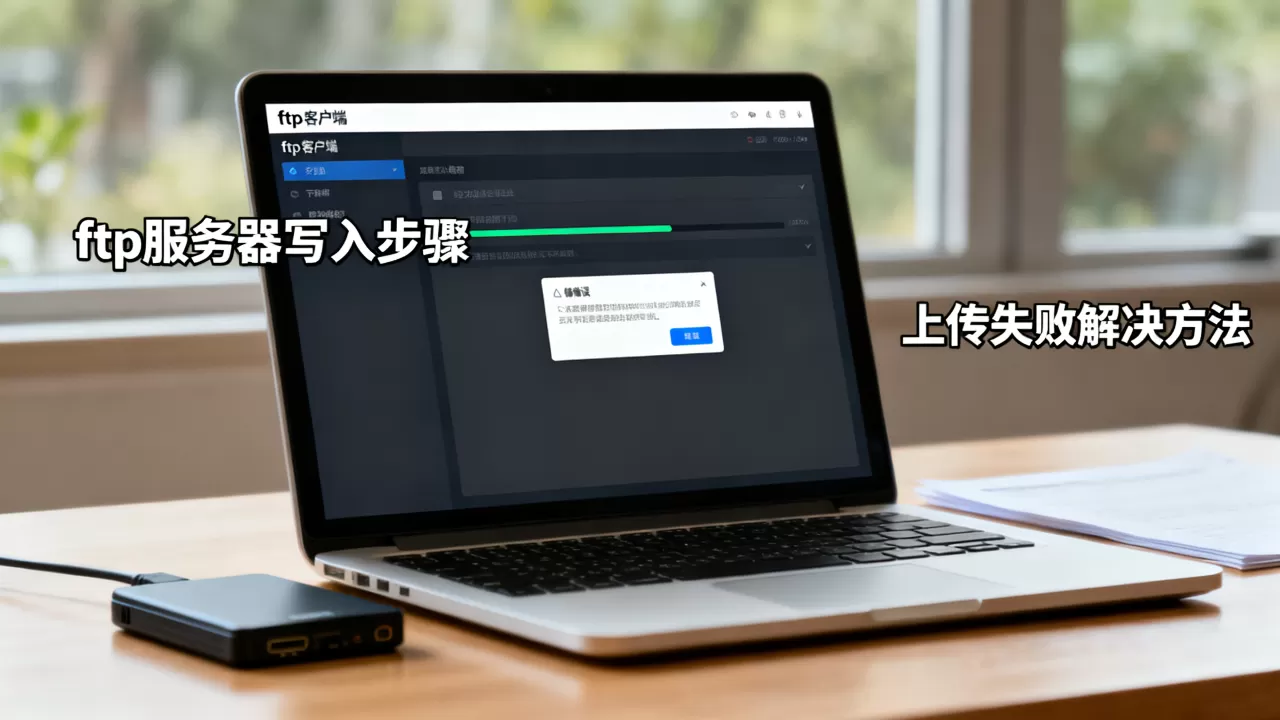
FTP(文件传输协议)服务器“写入”数据,通常指的是将本地文件上传到远程 FTP 服务器,或者在服务器端直接创建/编辑文件,根据你的身份(普通用户、开发者、系统管理员)和技术栈不同,有以下几种常见方式:
普通用户:使用图形化 FTP 客户端(最简单)
这是最直观的方法,适合日常文件上传。


常用工具:
- FileZilla(免费、开源、跨平台,最推荐)
- WinSCP(Windows 平台)
- Cyberduck(Mac 平台)
操作步骤(以 FileZilla 为例):
- 连接服务器:
- 打开 FileZilla。
- 输入主机(Host,如
ftp.example.com)、用户名(Username)、密码(Password)、端口(Port,默认 21)。 - 点击“快速连接”。
- 导航目录:
- 左侧窗口是你的本地电脑文件。
- 右侧窗口是FTP 服务器文件。
- 写入文件:
- 在左侧找到你要上传的文件。
- 右键点击文件,选择“上传”;或直接拖拽到右侧窗口。
- 如果要在服务器新建文件夹,可在右侧右键 → “新建目录”。
✅ 优点:操作简单,可视化强。
❌ 缺点:不适合自动化任务。
开发者:使用编程方式写入(自动化)
如果你需要通过代码将数据写入 FTP 服务器,可以使用多种编程语言。
Python 示例(使用 ftplib 模块)
from ftplib import FTP
# 连接 FTP 服务器
ftp = FTP('ftp.example.com')
ftp.login(user='your_username', passwd='your_password')
# 切换到目标目录(可选)
ftp.cwd('/remote/path')
# 方式一:上传本地文件
with open('local_file.txt', 'rb') as file:
    ftp.storbinary('STOR remote_file.txt', file)  # 写入远程文件
# 方式二:创建新文件并写入内容
ftp.storlines('STOR new_file.txt', open('local_file.txt', 'rb'))
# 断开连接
ftp.quit()
Java 示例(使用 Apache Commons Net)
import org.apache.commons.net.ftp.FTPClient;
import java.io.FileInputStream;
FTPClient ftpClient = new FTPClient();
ftpClient.connect("ftp.example.com", 21);
ftpClient.login("your_username", "your_password");
// 设置被动模式(大多数服务器需要)
ftpClient.enterLocalPassiveMode();
// 上传文件
try (FileInputStream inputStream = new FileInputStream("local_file.txt")) {
    ftpClient.storeFile("remote_file.txt", inputStream);
}
ftpClient.logout();
ftpClient.disconnect();
Node.js 示例(使用 basic-ftp 库)
npm install basic-ftp
const { Client } = require('basic-ftp');
const fs = require('fs');
async function uploadFile() {
  const client = new Client();
  await client.ftp.connect('ftp.example.com', 21);
  await client.ftp.login('your_username', 'your_password');
  await client.ftp.write('STOR remote_file.txt', fs.createReadStream('local_file.txt'));
  await client.ftp.close();
}
uploadFile().catch(console.error);

系统管理员:在 Linux 服务器上直接使用命令行
如果你已经登录到 FTP 服务器所在的 Linux 系统,可以使用 ftp 或 sftp 命令,或通过文件系统直接写入(FTP 目录是本地磁盘挂载)。
方法 1:使用 ftp 命令行工具
ftp ftp.example.com
# 输入用户名和密码
cd /path/to/remote/directory
put local_file.txt
quit
方法 2:使用 sftp(更安全,基于 SSH)
sftp user@ftp.example.com
# 输入密码
cd /remote/path
put local_file.txt
exit
方法 3:直接写入本地文件系统(FTP 服务指向本地目录)
FTP 服务器的根目录是 /var/ftp/pub,你可以直接在 Linux 终端写入:
echo "Hello FTP" > /var/ftp/pub/new_file.txt
⚠️ 注意:需确保 FTP 服务进程(如 vsftpd、proftpd)有权限读取该文件,且文件权限设置正确。
关键注意事项
-
被动模式(Passive Mode):
- 大多数现代 FTP 服务器和客户端使用被动模式(PASV),如果连接成功但上传失败,请确保客户端和服务器都启用了被动模式。
- 在 FileZilla 中:编辑 → 设置 → 连接 → FTP → 选择“被动模式”。

-
权限问题:
- 确保 FTP 用户有写入目标目录的权限。
- 在 Linux 服务器上,检查目录权限:
chmod 755 /path/to/ftp/dir或chown ftpuser:ftpuser /path/to/ftp/dir。
-
安全建议:
- 避免使用明文 FTP,因为它会传输用户名和密码。
- 推荐使用 SFTP(SSH File Transfer Protocol) 或 FTPS(FTP over SSL/TLS),它们提供加密传输。
- 在 FileZilla 中,选择“要求显式 FTP over TLS”即可启用加密。
-
防火墙设置:
- FTP 使用两个端口:控制端口(21)和数据端口(被动模式下为随机高端口)。
- 确保服务器防火墙允许这些端口通信。

| 场景 | 推荐方式 |
|---|---|
| 普通用户手动上传 | FileZilla / WinSCP |
| 开发者自动化脚本 | Python ftplib / Java Apache Commons Net |
| 服务器端直接操作 | Linux 命令行 ftp / sftp 或直接写文件系统 |
| 安全要求高 | 使用 SFTP 或 FTPS,避免明文 FTP |
如果你有具体的开发语言或服务器环境(如 Windows IIS、Linux vsftpd),可以提供更多细节,我可以给出更针对性的指导。
首发原创文章,作者:王坚,如若转载,请注明出处:https://idctop.com/article/487389.html